
Lesson 4 · Templates
Create your own template and conversion instructions
Turn a piece of your own work into a PowerPoint deck or a webpage, then save the design choices you’d use again.
What you’ll do
What you’ll need
You’ll need:
- An AI tool such as ChatGPT or Claude that can create the requested file.
- A Word document you want to convert.
- For the PowerPoint guide, PowerPoint installed to open, inspect and edit your presentation.
If you don’t have your own source file that you want to work from, you can use the supplied 4Ds framework file.
Planning a PowerPoint presentation
Think of a talk you actually need to give. Who will be there, and what should they understand or be able to do afterward? That gives you a starting point for two decisions you can make independently.
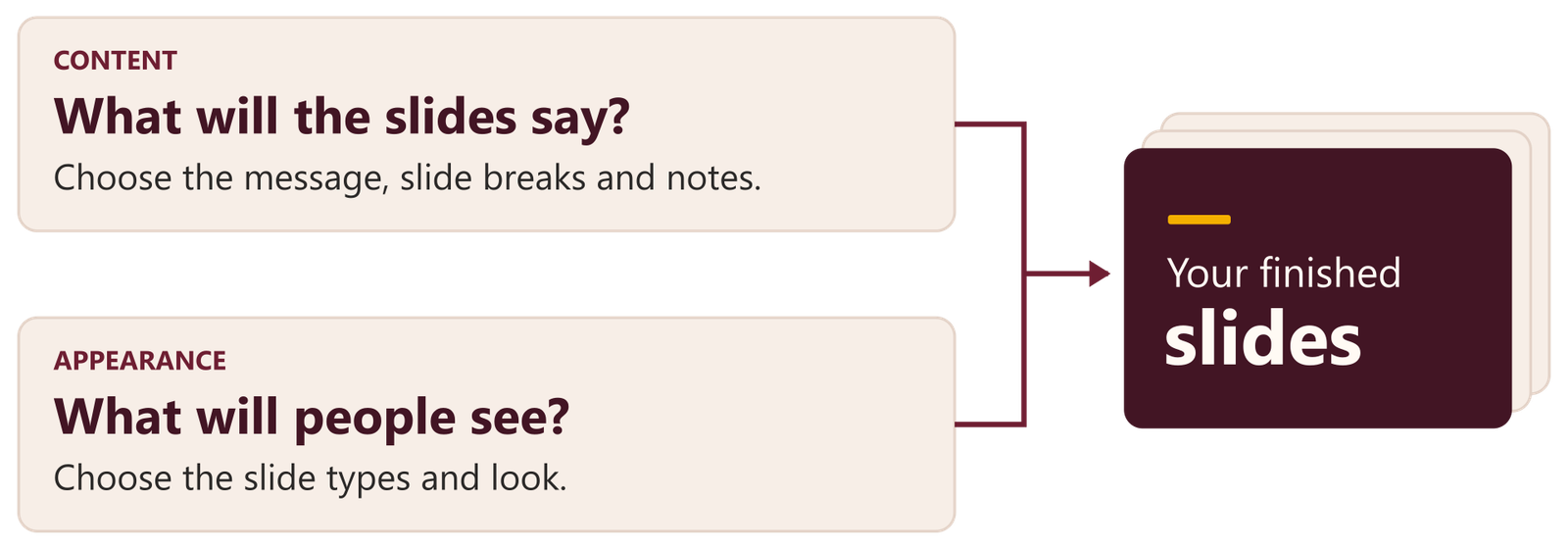
What will the slides say?
A report can supply the material without dictating the order of your talk. For a five-minute briefing, for example, you might open with the decision you need from the group, put two options on the next slide, and keep the background in your speaker notes. Ask AI to propose that sequence, or mark the slide breaks yourself if you already know how you want to tell the story.
Starting with an idea? Write a working title and a few bullets for each point you want to make. If the ideas are still rough, ask AI to interview you about the topic and turn your answers into an outline. Read the titles in order. Can someone follow the argument? Once the sequence works, decide how much of the explanation people need on screen.
What will people see?
You can give AI room to design the appearance of the whole deck, specify a few preferences, or ask it to follow a precise format. If you don’t usually design slides, let AI have a shot at the visual design based strictly on your slide plan or content. Once you see how it arranges the text and what it draws attention to, you can decide what you’d change.
Five design approaches
| Approach | What you give AI | When it helps and what you can reuse |
|---|---|---|
| 1. No design direction | Your reviewed plan and audience. AI chooses the look. | Get a first draft to compare with later versions. |
| 2. Colours and fonts | The colours and fonts you want, with a job for each. | Give slides a familiar look. Save the prompt for your next deck. |
| 3. Slide types | Colours, fonts and a few rules for choosing layouts. | Guide recurring choices, such as how to show a process. Keep the rules in a prompt or Project. |
| 4. A reusable deck template | An editable template, short design rules and any approved assets. | Match a specific format across presentations. Keep the files and instructions in a Project. |
| 5. A skill | A packaged set of instructions, reusable assets and optional checks. | Build decks with the same assets and checks each time. |
The five approaches are alternatives. More design direction is useful only when it improves the result for your audience.
| Open a guide | What you’ll find |
|---|---|
| PowerPoint guide | Prepare a plan, choose an approach, copy the prompt, check and save your deck. |
| Webpage guide | Prepare your content, choose an approach, build a page and test it with a reader’s task. |
Prompts and example files
Use these links to find and copy a prompt. Replace any square-bracket placeholders before sending it.